
PC PERFORMANCE TOOLPC Bottleneck Calculator
Check how well your processor and graphics card work together.
YOUR ESTIMATESystem balance
—%Estimated gapCPU index—GPU index (adjusted)—What this meansThis is a relative hardware estimate based on an illustrative performance index, not a live benchmark or guaranteed FPS result. Game engine, drivers, cooling, power limits, settings and background apps can change actual performance. A GPU-heavy result at high resolution is often normal.
How is this estimate calculated?
Each selected part has a relative reference index. Workload and quality settings apply modest weighting, and resolution adjusts the GPU-side index. The percentage is the gap between the adjusted CPU and GPU indices relative to the stronger index. It is a planning aid—not a measured percentage of FPS lost. Reference values are curated approximations and should be updated as hardware data improves.
PC Bottleneck Calculator
Check how well your processor and graphics card work together.
System balance
How is this estimate calculated?
Each selected part has a relative reference index. Workload and quality settings apply modest weighting, and resolution adjusts the GPU-side index. The percentage is the gap between the adjusted CPU and GPU indices relative to the stronger index. It is a planning aid—not a measured percentage of FPS lost. Reference values are curated approximations and should be updated as hardware data improves.
What Is a Bottleneck Calculator and How Does It Help Before You Buy?
A bottleneck calculator compares a processor with a graphics card using benchmark scores, names the slower one as the limiting part, and gives a percentage for the gap, so you know what to upgrade before spending.
The tool applies an adjusted score for the workload you pick and prints a verdict naming the slower side. It is arithmetic on published numbers, not a reading from your machine, so every output is one of many estimates. Nothing here is a promise about a specific game.
I’ve seen people blame a graphics card for stutter when an HDD was loading the game, and an SSD fixed it for a fraction of the price. If you already own the parts, open Task Manager during play and compare processor load against graphics load before buying anything.
How Does a Bottleneck Calculator Turn Two Parts Into a Percentage?
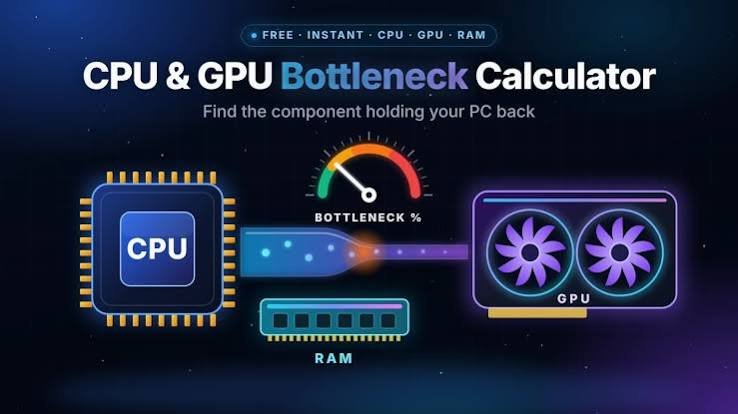
A bottleneck calculator scales each part’s score for the workload, puts both on one scale, weights the processor for resolution, and reports the gap between the lower and higher result.
Public benchmark data feeds the maths, and much of it comes from synthetic benchmarks rather than live gameplay, which is why two tools can disagree on the same pair. One database, for example, draws on PassMark scores for 4,084 CPUs and 1,707 GPUs.
Using one takes seconds with no sign-up: choose a processor, choose a card, set your resolution. Results land in four bands: 0–10%, 10–20%, 20–30%, and above 30%. Only the top band signals a mismatch worth planning around.
How Do You Read a Bottleneck Percentage Correctly?
A bottleneck percentage is the proportional gap between two adjusted scores, not the share of frames you are losing.
Read the named weakest component first and the number second. The saturated part is shown at 95% load, the other as a proportion of that, and a balance score out of 100 comes from the same gap; a 3% result reads as 94.
One worked case: a Ryzen 5 3600 with an RTX 4070 at 1080p showed 18%, a minor CPU limit. A Ryzen 7 5700X3D, a drop-in swap on the same board, brought it to 4%.
A GPU-limited result is the healthy state, because settings then trade against frame rate. To confirm on a real system, run MSI Afterburner and watch the on-screen overlay for processor and graphics load side by side.
What Is a CPU Bottleneck and How Do You Fix It?
A CPU bottleneck means the processor cannot prepare frames as fast as the graphics card can draw them, so the card waits.
It shows first at 1080p, where frames are small (2.1 million pixels) and the card finishes quickly. Check utilisation: a CPU limit looks like the processor near its ceiling while the card sits well below 95–100%.
Several fixes are free. Run two matched sticks in dual-channel, give the case better airflow so heat doesn’t slow the chip, and lower CPU-heavy shadows. One contrarian note: upscaling alone won’t help, because it lightens the graphics workload, not the processor’s.
The permanent fix is a faster CPU on the same socket. AM4 still has strong options, while AM5 means a new board and memory.
What Is a GPU Bottleneck and Is It Actually a Problem?
A GPU bottleneck means the graphics card finishes frames more slowly than the processor prepares them, which is the normal state in a gaming PC.
At 4K a frame holds 8.3 million pixels, so the processor stops being the constraint and the gap between parts shifts toward the card. An ultrawide monitor adds pixel load the same way.
A minor bottleneck of this kind is harmless. The warning sign is poor 1% lows, which point back at the processor. Weak cooling also matters, because a hot card lowers its own clocks.
Before buying a stronger card, check the power supply. Modern cards draw transient spikes above their rated figure, so a unit sized to the sticker totals can still shut the system off.
Does Screen Resolution Change Which Part Is the Bottleneck?
Screen resolution decides the limiting part because pixels are graphics work while game logic stays about the same.
The calculator’s resolution weighting multiplies the normalised processor score by 0.7 at 1080p, 1.0 at 1440p and 1.2 at 4K. Physics and draw calls barely change with pixel count, so at low resolution a strong card sits idle.
Try the resolution scaling test: drop one step and compare frames in the same scene. A gain of 30% or more means the card was the limit; under 10% points at the processor.
If the card is limiting, DLSS or FSR render at a lower internal size and scale up, while ray tracing adds load. A sharper monitor can be the budget answer to a CPU limit, though per-game behaviour differs: simulation titles stay processor-bound at any resolution.
Can RAM, Storage, Cooling or Power Cause a Bottleneck?
Yes, memory, storage, heat and power can each hold a PC back, though none of them move the CPU-versus-GPU percentage.
Memory below its rated speed is the cheapest leak: enable XMP or EXPO in the motherboard setup, and try a BIOS update if the kit won’t train.
Thermal throttling hides in the first ten minutes, when clocks start high and then fall. Watch frame times; a noticeable drop late in a session points at cooling, not the pairing.
When VRAM fills, assets load late and stutter follows. Lowering texture quality relieves it faster than any purchase.
Should You Upgrade the CPU or the GPU First?
Upgrade whichever part the calculator names as limiting for the resolution and games you actually play.
Name the limiting component before spending, since replacing the other part is the classic wasted money mistake. An i3-12100F with an RTX 4090 at 1080p showed a 75% CPU bottleneck with the card at 25% load.
At 1440p, about 3.7 million pixels per frame, pairings tend toward a balanced build: a Ryzen 7 9800X3D with an RTX 4090 scored 3% there, which is excellent balance. Judge CPUs by single-thread speed and cache, not core count alone.
A monitor at 144 Hz multiplies processor work because the refresh rate needs more prepared frames. Adding RAM to end page file stutter often costs less than either part.
How Accurate Is a Bottleneck Calculator?
A bottleneck calculator is accurate enough to flag an obvious mismatch, but it remains a planning estimate rather than a measurement.
The normalisation divisors of 40,000 for the CPU and 38,000 for graphics are fixed reference points, so you can check the working yourself.
It cannot see background apps, drivers or overclocking. A game leaning on one pinned core can look relaxed in total CPU usage while being thoroughly CPU-limited.
Treat a significant result as a prompt to verify before upgrade decisions, since a pair can land above 30% at 4K and still play well.
Can You Use a Bottleneck Calculator for Laptops, Consoles or Workstations?
A bottleneck calculator suits desktop gaming pairs, but a laptop, a console or a workstation each needs a caveat.
A laptop part with a desktop name can perform very differently because of power limits, and the CPU and GPU are soldered on most models, so a mismatch is something to check before buying. A PS5 or Xbox has fixed hardware, so there is nothing to rebalance.
For a workstation, video editing and 3D rendering lean on core count and memory rather than the frame-rate logic the tool models. 16GB suits gaming and 32GB suits multitasking or creating, and fast NVMe storage matters more here than in gaming.